AI File Fix / practical guide
AI File Fix for DTF transfers: request, revise and review
AI File Fix for DTF transfers starts with your uploaded artwork. Describe a correction, compare the candidates and choose the exact version to prepare for your AMS print order. You keep the final say.
- 01Request a specific change
- 02Compare or revise
- 03Accept + prepare
- 04Inspect + add + order
Choose the smallest useful change
A white box, a wrong year and a soft original are different problems. Choose the path that fits the actual file. Good artwork can stay as it is; a repair request should name what needs changing and what should survive untouched.
| What you have | Useful path | What it cannot establish |
|---|---|---|
| Original looks right at the needed size | Print as uploaded | You still check spelling, background, physical size and quantity. |
| Correct content but soft edges at a larger size | Consider Upscale | Upscale keeps the background and does not correct spelling. Inspect the resulting detail. |
| A specific background, wording or detail correction | Try Fix with AI | A candidate is not a guarantee of accurate text, restored detail or brand fidelity. |
| Unclear intended result or a job needing staff judgment | Ask the AMS art team | Staff artwork timing is separate from production and delivery. |
Write the request so you can check the answer
“Make it better” leaves you without a clear test. Separate the correction from the details to preserve. When words matter, type the exact final text, including punctuation and numbers. Keep your source file separately so you can compare it and return to it.
| Illustrative starting request | A request you can inspect |
|---|---|
| Fix the background | Remove the white rectangle outside the badge. Keep the white letters inside the blue badge and preserve the layout. |
| Update the text | Change only 2026 to 2027. Final text: TEAM REUNION 2027. Keep the badge shape, layout and blue color. |
| Make this print bigger | The design should be 10 inches wide with its proportions preserved. The wording and background are already correct; check whether Upscale is the right path. |
These are writing examples, not demonstrated repair outcomes. The AI note and revision fields each accept up to 1,000 characters; the brief builder below keeps the short note within that budget.
Compare details, not just sharpness
An AI candidate can look cleaner while changing a small letter, a hole inside a shape or an important edge. Compare the selected candidate against your source and your request before accepting it.
- LetteringRead names, dates, punctuation, small labels and numbers character by character.
- BackgroundCheck what should be transparent and what should remain printed, including inside letters.
- Edges and detailLook for lost fine lines, added shapes, halos or changed small elements.
- Preserved contentCompare layout, proportions and requested colors. Preservation instructions need inspection.
- Physical sizeInspect at the intended width and height; check both dimensions.
- Selected versionChoose the candidate you actually reviewed, not simply the newest thumbnail.
If a result needs a change, select that candidate, enter the remaining correction in the Request changes field and read the current revision quote. Choose Request changes to start the revision, then inspect the new candidate. Up to eight candidates are supported per design; revisions are not unlimited or automatically free.
Judge the detail at the size you need
1,200 pixels ÷ 4 inches = 300 PPI
The pixels cover a smaller physical width.
1,200 pixels ÷ 12 inches = 100 PPI
The same source has one third of the pixel density.
The arithmetic explains why a tiny preview is insufficient. It does not set an AMS passing threshold or prove quality. For garment measurements and proportion checks, use the DTF transfer sizing guide.
Acceptance, preparation and printing are separate decisions
| Decision | What you are agreeing to | Next check |
|---|---|---|
| Accept + start preparation | Looks good, make print ready accepts the selected candidate and starts preparation. | Read its preparation quote before choosing the action. |
| Review prepared output | Inspect the prepared result. When preparation changes transparency, confirm Use this prepared file when satisfied. | The extra prepared-review confirmation is conditional. Always check the allowed size and intended dimensions. |
| Add prepared design to sheet | Use the prepared design with the specified sizes and copies. | Review the complete sheet layout and quantities. |
| Checkout | Place the physical print order after reviewing its details. | Check the current price and production/delivery terms. |
Generation, revisions and preparation have separate current credit quotes. Read the quote for the action in front of you. Physical transfers are priced separately. An accepted candidate, a credit purchase or a prepared file does not place a print order.
The bulk workspace uses the labels above. An already accepted candidate may show Make print ready to resume preparation. Some single-design wizard screens instead say No, it needs changes and Yes, it looks good; their conditional prepared-review button is It looks good, use it. Follow the current screen and the exact preparation help.
If a step pauses, preserve the job before trying again
| Situation | Next useful action |
|---|---|
| Short on credits | Keep your upload and selected result. Check the current quote and balance. A top-up does not restart the action; return and choose it explicitly. |
| An operation is still processing | Wait or recover the current operation through the displayed controls. Avoid starting another copy of the same work. |
| Service error or unavailable tool | Keep the original and follow the displayed message. Ask support or use staff help when needed. |
| Some designs ready, others unfinished | Explicitly add only the ready designs if that suits the job; return to unfinished saved items through Continue your batch. |
For the exact task steps, use credit and recovery help. Working services and enabled tools still matter; a saved file alone does not prove a new operation can run.
Keep the first job useful for the next one
Your first-order and repeat-order worksheet
- Keep the unprepared original and the exact wording separately.
- Record which version you accepted, intended dimensions and copies.
- Review the prepared artwork and allowed size before adding it.
- For another AMS print job, use the saved design in My Designs → Create Gang Sheet.
- Recheck selected artwork, size, count and the new order’s price and timing.
Prepared AMS ProFiles use protected previews and saved identity. For pixel changes, return to the unprepared source, review the new result and prepare that version. Saved reuse is a supported AMS print path; it does not promise an ordinary editable PNG or vector export.
Make the request specific
Write your artwork repair brief
Describe the change and what must stay. You’ll get a short AI note and an inspection plan before opening the builder. This tool writes text; it does not inspect an image, run AI, quote a price or approve artwork.
No upload or contact details. Entries stay on this page and reset when you leave. Keep your original file separately.
2. Read the note before you copy
74/1,000 characters. The builder’s initial note and revision fields each allow 1,000. Dimensions and checklist stay in the full plan below.
3. Know what to inspect
- Read every word, number and small label.
- Inspect the background, holes inside letters and edges around the design.
- Compare the details to preserve: [record what must stay].
- Inspect edges and fine detail at ? × ? inches.
- Select the intended candidate and read the preparation quote before choosing Looks good, make print ready. That action accepts the candidate and starts preparation; inspect the prepared result before Add prepared design to sheet. Confirm Use this prepared file only if the conditional transparency-review step appears.
Complete these brief details
- Describe the specific change you want.
- Record the important wording, colors or details that must stay.
- Enter both intended dimensions between 0.1 and 120 inches. This is the worksheet range, not an AMS print-size approval.
- Confirm you own the artwork or have permission to use and change it.
Full plan and selectable copy fallback
Open Upload, select your file and choose Fix with AI when you want to try the requested change. If you choose AI, paste the note yourself and review the shown credit quote. Nothing from this worksheet is sent automatically.
Open Upload in the builderWhy these checks matter at a print shop
AMS’s owner brings more than seven years of printing for clients to this workflow. The useful questions remain practical: what should print, at what size, and which version did the customer actually accept?
In Alex’s artwork mistakes walkthrough, unwanted white borders and small source images become production problems. In the historical Word-artwork demonstration, a rough source leads to alternatives and a planned proof choice. Both lessons point to describing the change and inspecting the chosen result. Historical demonstrations do not establish the outcome of a new AI File Fix request.
For a Houston or Texas deadline, choosing staff artwork help adds a timing decision: Ready by 2:00 PM Central today, or the next business day if ordered after 2:00 PM. Artwork assistance comes before production; confirm pickup or delivery separately. The staff File Fix page explains that route.
Start with one design and one clear change
- Open Upload in the AMS Gang Sheet Builder and select your source.
- Choose Fix with AI, sign in and paste your short note manually.
- Read the current quote, generate and compare the candidate. Revise if needed.
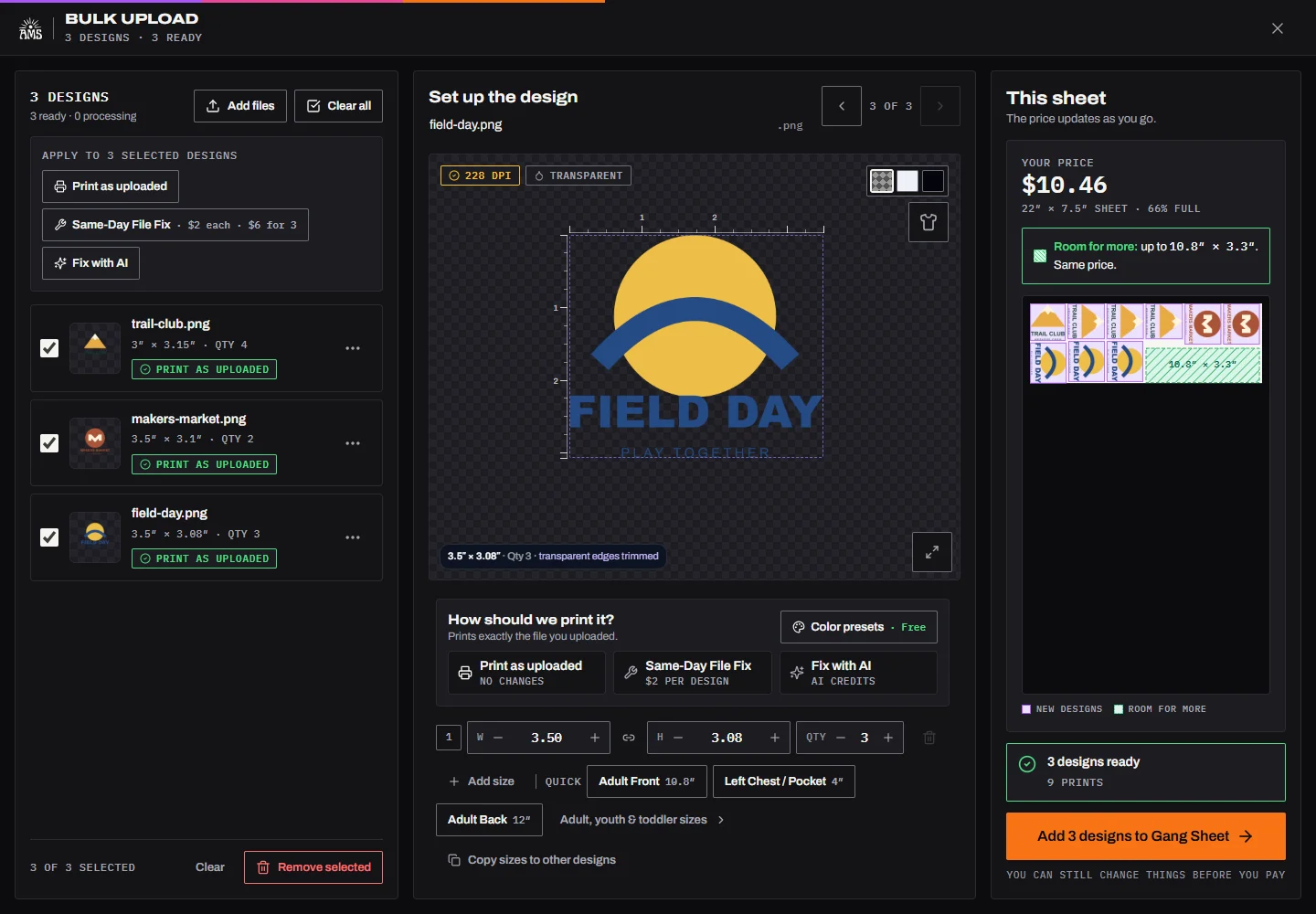
- Select the intended version and read its preparation quote before choosing Looks good, make print ready. Inspect the prepared result and size. Confirm Use this prepared file if the conditional transparency-review step appears, then choose Add prepared design to sheet.
- Review the sheet and checkout for your AMS transfer order.
Working on several different files? Use the mixed-artwork preparation checklist. For the feature overview, visit AI File Fix.
Questions before the next print order
Is AI File Fix the same as Upscale?
No. AI repair can try changes to artwork content. Upscale helps with size or sharpness while retaining the original background; it does not fix spelling. Review either result at the intended physical print size.
Can I ask for another change?
Yes. Select the candidate and enter a specific correction in the Request changes field. Review the current revision quote, then choose Request changes to start it. Candidates and credits have limits; revisions are not unlimited or automatically free.
Does accepting the result place my print order?
No. Read the preparation quote before choosing Looks good, make print ready for the exact candidate. That action starts preparation. Inspect the prepared version and allowed size, explicitly add it to the sheet, and review checkout. These are separate decisions.
Can I edit or export a prepared ProFile as an ordinary image?
Prepared ProFiles use protected artwork identity. For pixel changes, edit an unprepared source and prepare the newly reviewed version. Saved reuse through AMS is supported; a ProFile is not a promise of a standalone PNG or vector export.
Do I need a software subscription?
No software subscription is the purpose of this workflow. Credits cover the quoted artwork actions and physical printing is charged separately. Use the saved artwork with AMS for later print orders when it suits your job.