Artwork preparation / DTF gang sheets
How to prepare multiple designs for a DTF gang sheet
Give each artwork its own print size, copies and handling choice. Review the exact version you want printed before you pack.
- 01Set size + copies
- 02Inspect the artwork
- 03Choose handling
- 04Review the version
- 05Pack + check sheet
Print as uploaded
The original already looks right at your intended size.
Keep the original. Still check spelling, background, dimensions and copies.
Fix with AI
You want to try a correction and inspect a new result.
Sign in, read the current credit quote, and review the selected result. AI can change details.
Same-Day File Fix
You want staff artwork assistance.
Confirm the artwork request and timing. Staff assistance is a separate step before production.
Your worksheet · no upload or contact details
Ready to pack? Check each design.
Record the size and count, then check the actual artwork yourself. This planner organizes your decisions; it cannot inspect files or approve print quality. Entries stay in this page and reset when you leave.
0 of 1 design checklists complete
Set the print size before judging the file
A small image can look fine on your phone and reveal soft edges when enlarged for a shirt. Write down the final width and height for each design, preserve its proportions, and inspect the lettering and fine detail at that physical size. The size of the overall gang sheet is a different measurement.
1,200 pixels ÷ 4 inches = 300 PPI
The source pixels are spread over a smaller print width.
1,200 pixels ÷ 12 inches = 100 PPI
The same file has one third of the pixel density at this width.
This arithmetic explains scaling; it is not an AMS passing threshold. More pixels alone cannot confirm correct spelling, clean edges or an approved design. For garment measurements, use the DTF sizing guide.
Check the background and the visible design separately
| What you see | What to decide before packing |
|---|---|
| White or colored rectangle behind the design | Confirm whether that background should print. Do not assume an unwanted background will disappear. |
| Empty margin around a small visible logo | Check the visible artwork bounds. A large canvas can hide a much smaller logo. |
| Soft lettering, broken edges or missing detail | Compare at final size. Find a better source or choose help, then review the result. |
Alex covers unwanted white borders and small source images in AMS’s DTF artwork mistakes walkthrough. Those preparation checks still matter when several files arrive together.
One batch can need three different decisions
For example, suppose your job has a clean chest logo, a low-resolution back graphic and a design with lettering you cannot confidently correct. Treat each one separately:
- Chest logo: keep the original if it passes your final-size check. Record its own dimensions and copies.
- Back graphic: try AI if it suits the correction you need. Review its selected result rather than approving because the preview looks sharper.
- Uncertain lettering: request staff help with the exact text and intended size. Keep timing unresolved until confirmed.
Upscaling preserves the original background and does not correct spelling.
Review the version that will actually print
- Read every word, number and small label.
- Compare edges, fine lines and important details.
- Check what is transparent and what should print.
- Confirm the final width and height.
- Confirm copies for this design.
- Confirm the selected original or repaired version.
An accepted AI result still needs preparation and an explicit add to the sheet. Check the prepared result and its allowed size before adding it. Prepared AMS ProFiles use protected previews. If the artwork needs pixel changes, edit the unprepared source, review it and prepare a new version; see Make Print Ready help.
Keep artwork time separate from production time
Planning a Houston or Texas deadline?
Same-Day File Fix uses a 2 PM Central artwork cutoff; requests after the cutoff move to the next business day. That is the artwork step. Sheet production, shipping and any pickup arrangements need their own confirmation.
Staff File Fix is currently $2 per design. AI generation, revision and preparation use the credit quote shown for the action; review that quote before proceeding. Artwork assistance and physical transfers are separate costs. If a deadline is tight, resolve the unfinished design before treating the whole job as ready.
Bring the checked designs into the builder
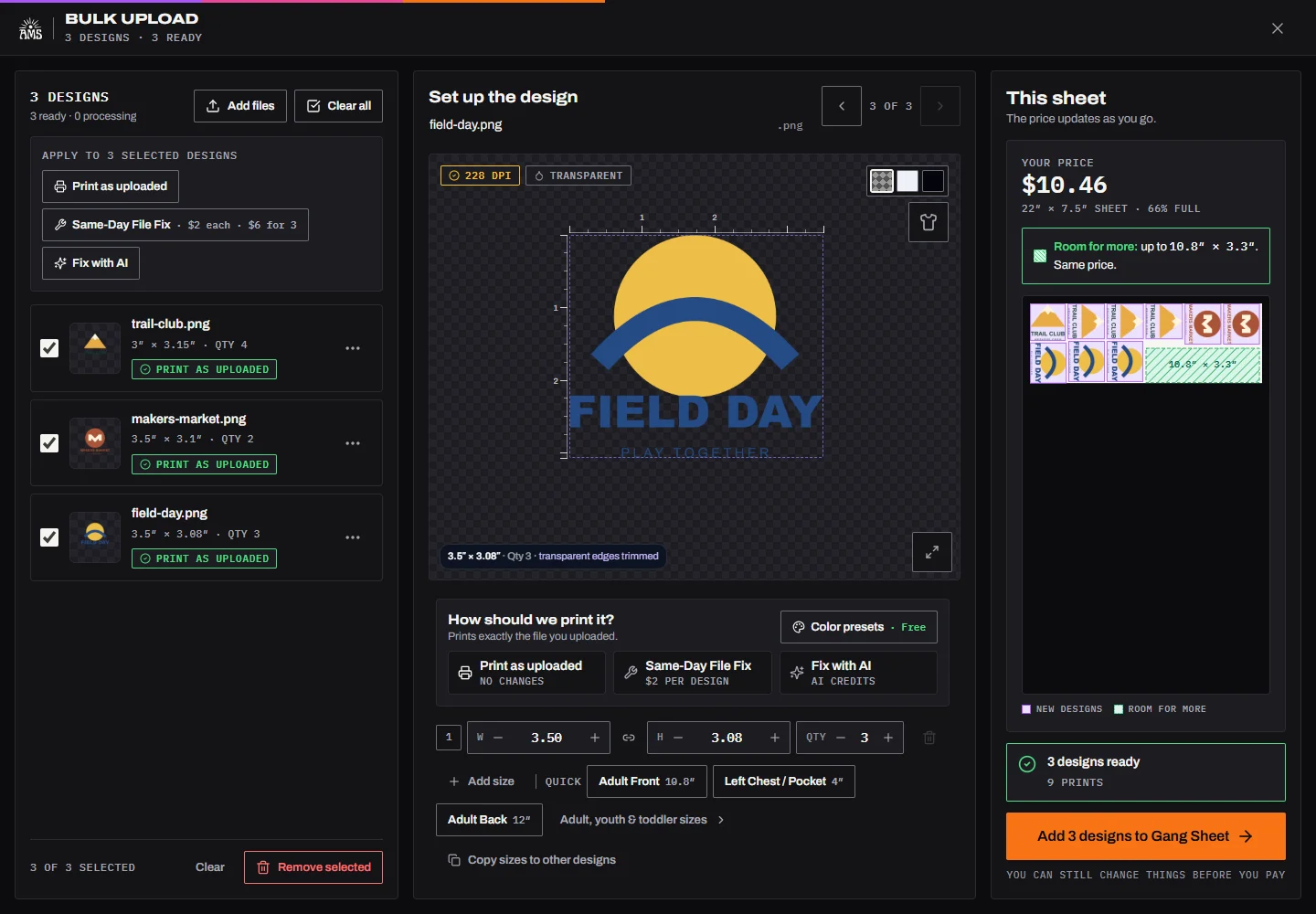
- Open Upload (One or many). Select PNG, JPG or WebP files together. Upload PDF or SVG files one at a time.
- Set dimensions, copies and handling for each design. For AI, sign in, read the quote and inspect the chosen result before approving.
- Explicitly add the ready designs. If you add only ready items, unfinished designs remain saved for you to continue.
- Return through Continue your batch in the same session or account, then check the complete sheet and order before checkout.
Opening the builder does not transfer this worksheet or upload any files. Keep your copied plan nearby as you enter the job.
For the full feature overview, visit the AMS DTF gang sheet builder guide.
Questions before you pack
Can I upload different designs together?
Yes. Bulk upload supports PNG, JPG and WebP files, with sizes, copies and handling choices for each design. Upload PDF or SVG files one at a time.
Does every design need Fix with AI?
No. Keep acceptable artwork as uploaded. Choose AI when you want to try a correction, then inspect the selected result before approving it. AI requires sign-in and shows the current credit quote.
Can I pack the designs that are ready first?
The batch workspace supports explicitly adding ready items while unfinished designs remain saved. Check which items you are adding, then return through Continue your batch in the same session or account.
Can I edit a prepared AMS ProFile?
Prepared ProFiles use a protected preview. For changes to pixels, return to the unprepared source, make the change, review it and prepare the new version. A ProFile is not a promise of a standalone PNG download.
Does Same-Day File Fix mean same-day transfers?
No. File Fix is staff artwork assistance. Artwork timing comes before sheet production and delivery; confirm the full schedule for your job.