AI Design Studio: Ultra Max and Signature
Turn an idea or reference into artwork you can check and use in your gang sheet.
AI Design Studio is built into the AMS gang sheet builder. Create artwork from an idea or rebuild it from a screenshot, then review the result before adding it to a sheet.
Choose the tool for your starting material, check the words and edges, and use only the version you approve.

Find your starting point
What do you have right now?
Choose the source you have. We will show the right tool and the one thing to check before you order.
Use Create New Design
Describe the artwork and choose Ultra Max or Ultra Max Signature. When Detail and Size appear on your account, the menu shows the total credits for one design before you generate.
- Bring
- Write the exact words, subject, style, and background you want.
- Check before ordering
- Read every word and inspect the edges at the size you plan to print.
New in AI Design Studio
Keep your design open. Keep the version you checked.
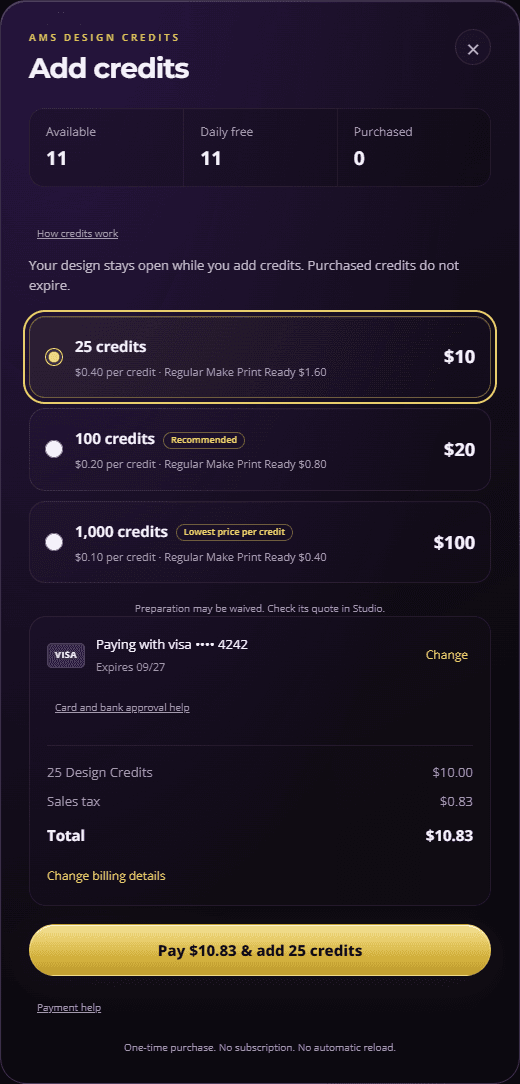
Signed-in users can see daily free credits, add a one-time credit pack without leaving their design, and keep a completed Make Print Ready version for supported reuse. Read each action’s quote before confirming; physical transfers are ordered separately.
From your artwork to the next sheet
- Open AI Design Studio from the gang builder and sign in. Choose the version and print width you intend to use.
- Read the current action quote. If you need credits, choose Add credits, review the final total, and finish the purchase. Confirmed credits let you choose your next action; they do not start it automatically.
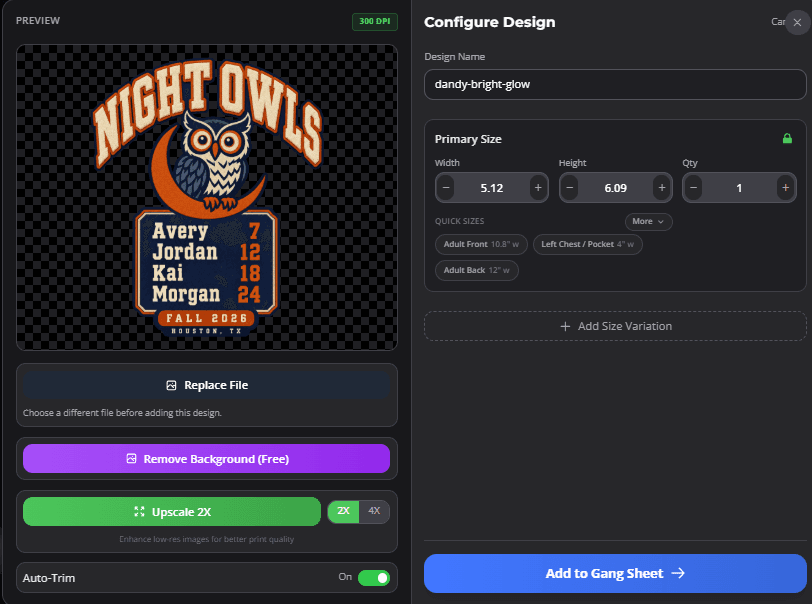
- When Make Print Ready is offered, prepare the selected version. Review words, edges, background and detail at the intended print size.
- Find that saved prepared version in My Designs. Reuse it through the AMS workflow; changed words or pixels create a new version that needs review.
Daily allowance and one-time packs
Eligible actions use the 15 daily free credits first, then existing Studio credits, then purchased credits. Daily credits reset at midnight UTC and do not roll over. Purchased credits do not expire.
- 25 credits · $10.00 before tax
- 100 credits · $20.00 before tax
- 1,000 credits · $100.00 before tax
Credit packs are available to US users. Enter accurate US billing details and review any sales tax and the final total before paying. The current quote controls the charge.
Preparation still needs your review
The regular Make Print Ready price is 4 credits; the launch waiver currently quotes 0. The quote can change. Waived preparations have their own rolling 24-hour limit, separate from daily credits. Preparation does not guarantee correct spelling, automatic background removal or unlimited print size.
Already preparing or paying?
Check the existing attempt before starting another. Use Check payment status for a pending purchase. Reserved credits can mean work is still in progress. Follow the payment recovery steps or recover the original preparation.
My Designs offers a protected Download .ams file for AMS reuse. It is not an ordinary PNG or vector export. Find and download your prepared file.
A practical model guide
Ultra Max or Ultra Max Signature?
When both options appear in Create New Design, use the job to choose a starting point. Ultra Max works for exploring a concept or composition. Consider Ultra Max Signature for lettering-sensitive or intricate work. Neither choice guarantees correct words, clean edges, or a ready-to-print file.
Model
Choose the render path for the job. Review the actual result before using it.
Detail and output Size
These change rendering effort and pixel dimensions. Read the updated credit quote before Generate.
Printed width
Set the physical width on the sheet. Inspect the result there; a large pixel preset alone does not approve it.
Before you generate
- Describe the subject, style, colors, and any exact words.
- Choose the available model, Detail, and output Size.
- Read the current AMS credit total beside Generate. Edits have their own quote.
Before you order
- Check spelling, recognizable details, and outside edges on light and dark backgrounds.
- Inspect the design at its intended inch width and resolve artwork or File Fix warnings.
- Check copy count, placement, sheet layout, and proof.
Plan your artwork before you generate
Know the words, print width, and source material? Build a brief you can copy into your next design session.
Plan the artwork before you generate
1. What are you starting with?
2. Choose a starting mode
Start with Ultra Max. Describe the subject, style, colors, and any exact words. Available modes are shown in your builder; no mode guarantees correct words or ready-to-print art.
3. Set the real print width
Output Size is a pixel preset. Inspect the actual result at this physical width.
4. Protect exact details
5. Read the current credit quote
Choose the available model, Detail, and Size. Read the total beside Generate. Changing settings or making an edit can change the quote.
6. Check the artwork
Compare source and result. Inspect words, recognizable details, outside edges on light and dark, print width, and any resolution or File Fix warning.
7. Check the order path
Check copies, sheet placement, and proof. Confirm the dated production or delivery choice offered for your actual order.
Your brief
Starting material: A written idea. Start with Ultra Max. Describe the subject, style, colors, and any exact words.
Exact words: confirm before generating.
Intended print width: measure before ordering.
Check the live AMS credit total beside Generate for every render or edit.
Review spelling, edges, print width, File Fix status, sheet layout, and proof.
What you can do inside AI Design Studio
1) Create New Designs
- Use curated daily prompts or write your own
- Upload reference images for style guidance
2) Screenshot-to-Design
- Use photos and screenshots as references, then check the generated art
- Rebuild old art from blurry sources
3) Special Effects
- Sequin look (faux sparkle)
- 3D puff embroidery look
Check the file before it goes on your sheet
Check the Background
Inspect the actual artwork for unwanted boxes, halos, or missing detail before adding it to a sheet.
Check Print Size
Compare the file pixels with the physical size you want. A sharp screen preview alone cannot approve a print.
Place the reviewed art
Drop your generated designs directly into our auto-nesting builder.
Simple Credits
Open the builder to see your current credit balance. The Generate button shows the total for your selected design before you spend credits.
Detail and Size choices appear only where enabled for your account. Recheck the total if you change either setting.
From artwork to an approved sheet
The artwork still needs a size check, a sheet check, and a proof review.
The “Don’t Get Burned” Rules
- ▶ Use art you own or have permission to use. If you don’t have rights, don’t print it.
- ▶ For Screenshot-to-Design: best results come from clear, well-lit, flat photos.
- ▶ If you see quality warnings (low-res), upscale or reduce size before ordering.
FAQs
Do I own my generated designs?
Check the current AMS and DesignGen terms for your intended use, and make sure you have rights to any source image, logo, or words you supply.
What should I check before using a generated design?
Read every word, inspect transparency and edges, and check the file at the size you plan to print.
Can I generate inside the gang sheet builder?
Yes. Open AI Design Studio from the gang sheet builder and review a result before adding it to your sheet.
Do I get a proof before checkout?
Review the artwork at its intended physical size, check the sheet layout, and confirm the final proof shown in your checkout flow before placing an order.