How to turn AI images into print-ready artwork
The step-by-step workflow for turning any AI-generated image into a production-ready print file — whether you want to DIY with free tools or have us handle it for you.
- No extra fee to make AI artwork print-ready
- DTF transfers or finished apparel
- Built for brands, creators, merch sellers, and bulk orders
Preparing a version inside AMS?
Make Print Ready prepares a selected image, then you review that completed version at the size you plan to print. Keep the saved prepared identity for reuse; changing words, pixels or background creates a new version that needs review. Preparation does not establish correct spelling or a perfect physical result.
Read the preparation and reuse stepsFirst, stop trusting the DPI warning fix
The biggest mistake people make is thinking they can just upscale the image a couple times, make the resolution number bigger, and call it good.
That is not the same as making the artwork print-ready.
The better workflow is to rebuild the design from the screenshot, remove the background, and vectorize when the art calls for it — so the result is cleaner and more scalable for production.
The actual workflow
Six steps from raw AI image to production-ready artwork.
Upload the AI image into Image Studio
Start with the image you generated in ChatGPT, Gemini, or another AI image tool. Image Studio gives you a workspace to improve it.
Open Image StudioUse Screenshot-to-Design
This redraws the image from scratch so you are not relying on the raw screenshot quality. The goal is a cleaner file with crisper lines and fewer weird artifacts.
Try Screenshot-to-DesignRemove the background
Get rid of anything that should not print. Clean backgrounds make for cleaner transfers and cleaner garments.
Try Background RemoverVectorize when it makes sense
Vectorization is the unlock when you want crisp shapes and scalable output. SVGs can be resized without the same quality loss you get from raster formats.
Try VectorizerApprove the fixed file
If AMS touches the art, an artwork approval flow is sent so you can compare the fixed file with the original side by side before anything gets produced.
Choose the right print path
Need DTF transfers? Order DTF. Need finished apparel? Route it into shirts, hoodies, or broader custom apparel.
DIY option: use DesignGen tools yourself
If you want to learn the workflow and do it yourself, these free tools cover the core steps — screenshot-to-design, background removal, vectorization, and more.
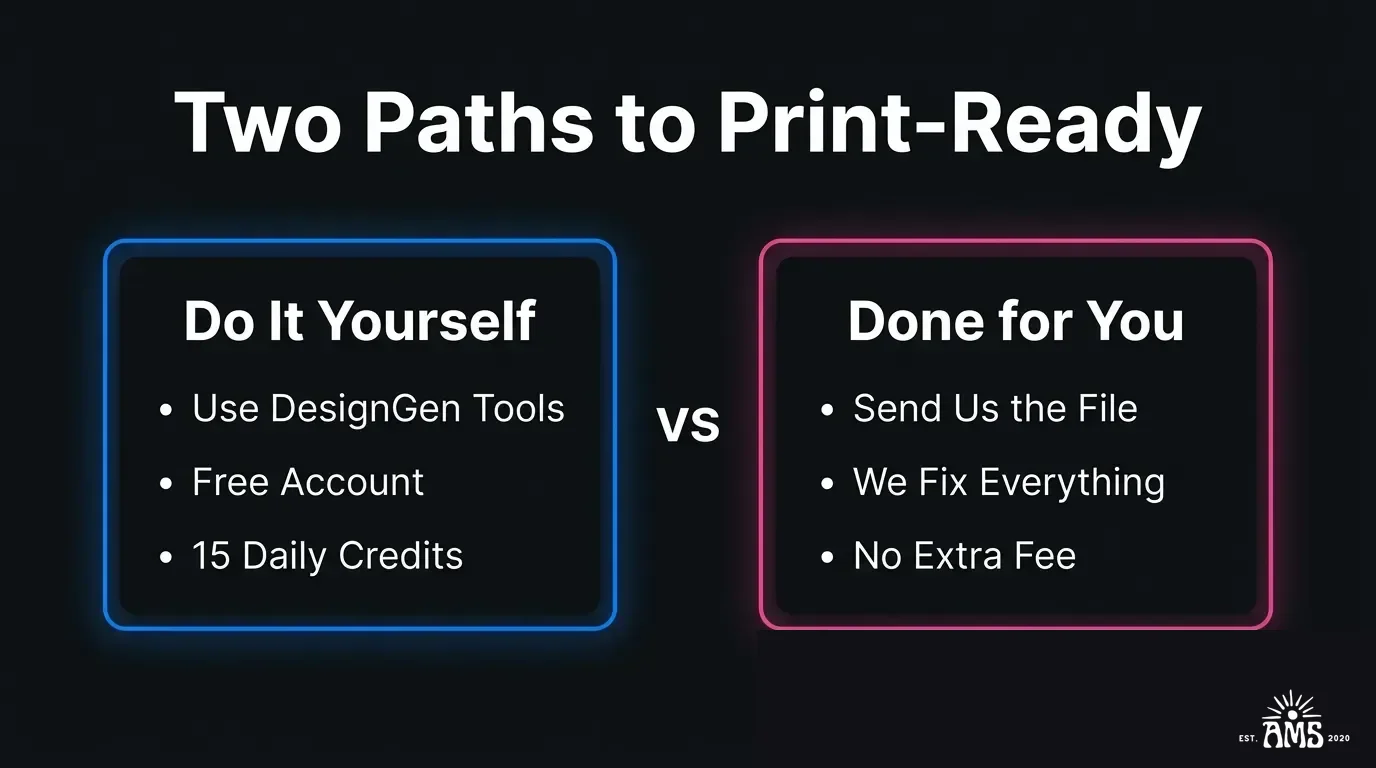
Done-for-you option: send us the file
If you would rather not mess with any of that, send us the design.
We will review the image, fix what needs fixing, send over the cleaned-up version for approval when applicable, and quote the best production path for your order.
Best next step by buyer type
Gang sheet integration
Once the design is ready, the AMS gang sheet builder helps you size, pack, proof, and approve the order with less guesswork. It supports proof downloads, background toggles, low-DPI warnings, auto-packing, and a clean approval step before cart.
See the difference
Raw AI output on the left. Print-ready artwork on the right. Drag the slider to compare.
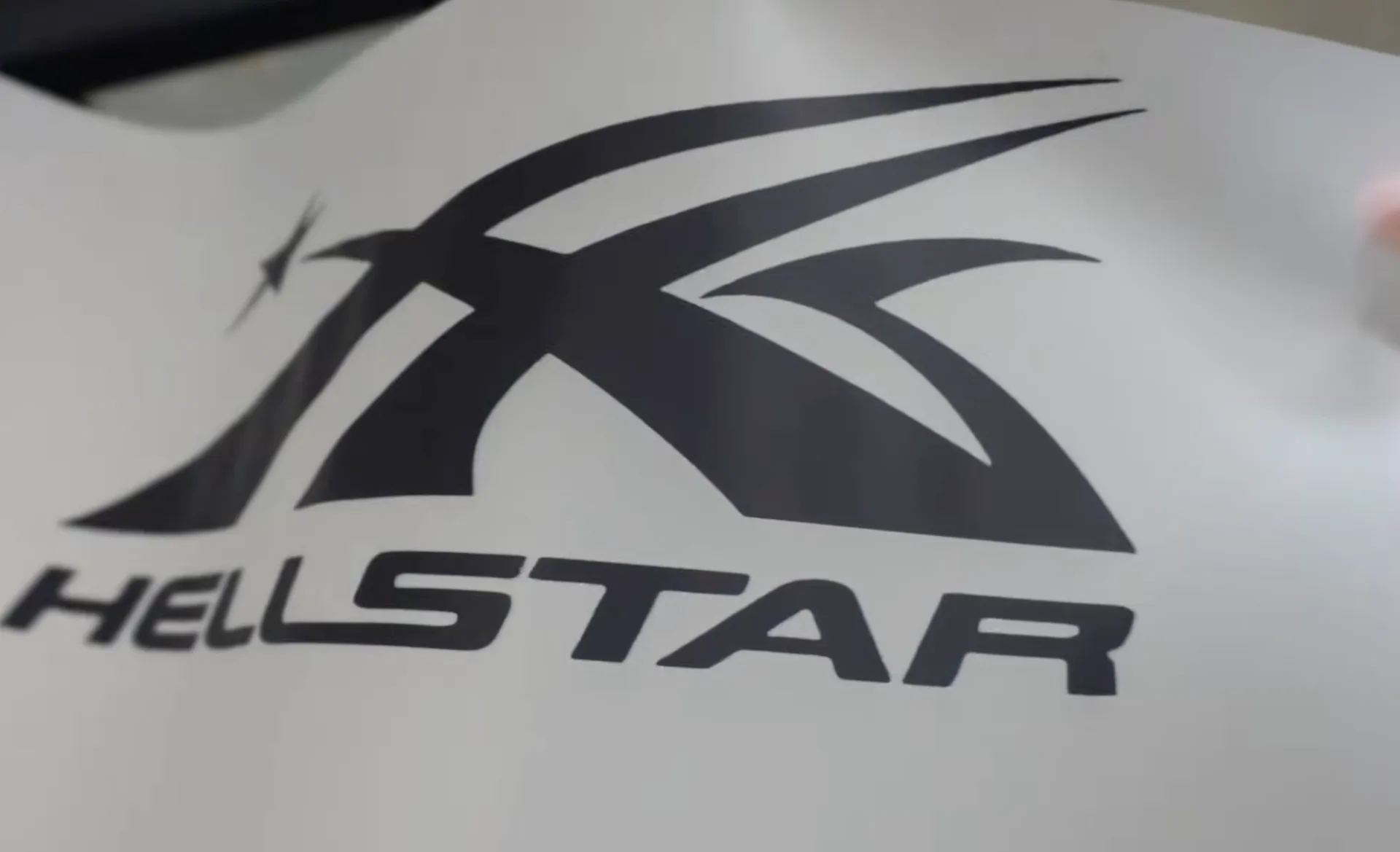 After
After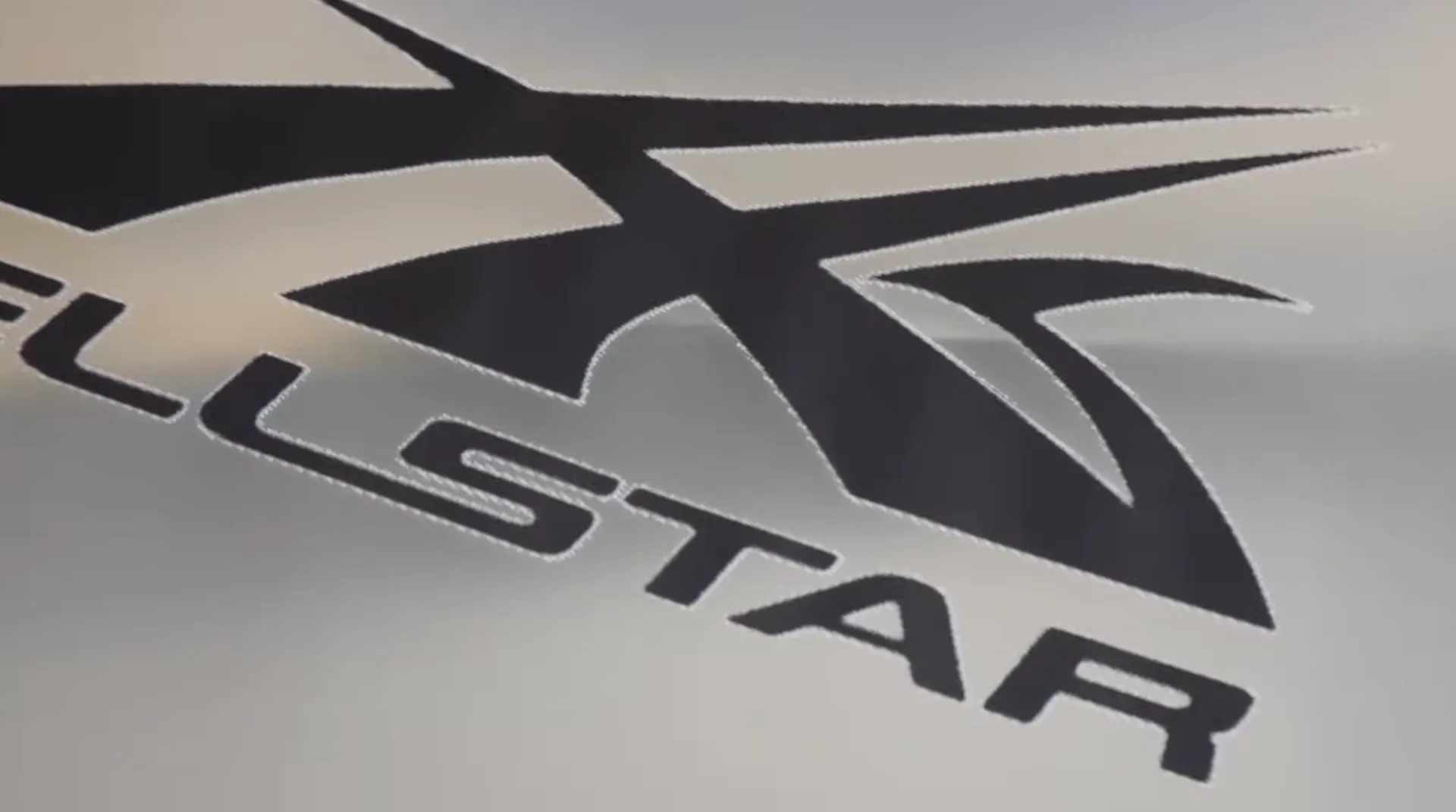 Before
Watch the workflow
See how an AI-generated image gets turned into print-ready artwork step by step.
Learn the workflow or skip the learning curve
Use the process yourself in DesignGen, or send us the AI image and let us clean it up and quote the print job for you.
DIY vs. Done-for-You
Choose the path that fits your workflow and comfort level.
Best For
- People who want to learn the AI-to-print workflow
- Designers who want to use DesignGen tools directly
- Customers who prefer to send the file and have it handled
- Print shops looking for a faster cleanup process
Not Ideal For
- Customers who already have print-ready files (go straight to ordering)
Houston Operations Notes
- ✓The full workflow is free to try using DesignGen — no credit card required.
- ✓If AMS touches the artwork, an approval is sent before production.
Keep Exploring
Deep dive into specific transfer methods, pricing models, and our Houston operations.
We Print ChatGPT Designs
We Print ChatGPT Designs
We Print Gemini Designs
We Print Gemini Designs
ChatGPT DTF Transfers
ChatGPT dtf
ChatGPT T-Shirts
ChatGPT shirts
ChatGPT Hoodies
ChatGPT hoodies
ChatGPT Custom Apparel
ChatGPT apparel
DTF Transfers Houston
Learn about DTF transfers
Transfer File Requirements
File requirements for print
AI Design Studio
AI Design Studio (DesignGen)
Finished Apparel Service
Finished apparel service
Frequently Asked Questions
Why is upscaling alone not enough?
When should I vectorize an AI image?
Can I send the file to AMS instead of doing it myself?
What AI tools does this workflow support?
Is DesignGen free to use?
Ready to Start?
Start your order now or contact a transfer specialist to confirm method, timing, and file readiness.