AI File Fix
Fix your artwork.
Keep the final say.
Request artwork changes, then choose the version for your next AMS print order.
In the builder: Upload, then choose Fix with AI. Sign in and review the current credit quote.
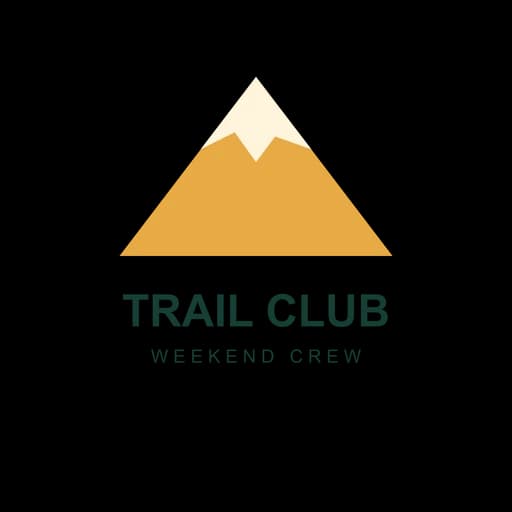
Original
512 × 512 px
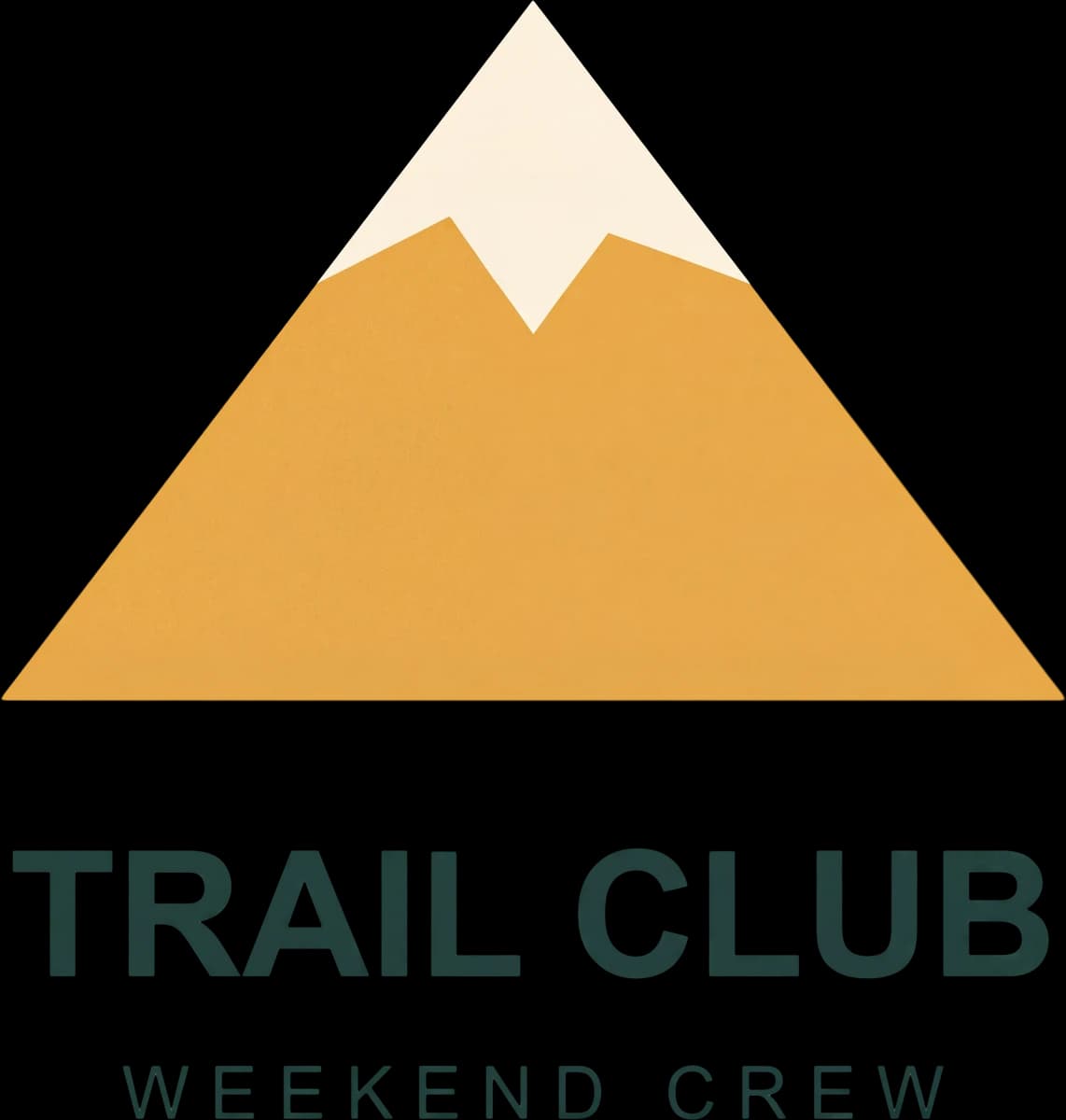
Selected Version 1
2180 × 2291 px delivered
01Request the change
Start with your file. Say what should change.
Upload your artwork and choose Fix with AI. Sign in, choose whether to remove the background, and describe what to change and what to keep. Read the current quote before starting.
Bring the clearest original you have and the exact words you want to see.
02Compare and revise
A new version is a choice, not a final answer.
Compare the result with your source. Read every word and inspect the background and edges. Use Request changes to describe a revision, or select the candidate you prefer.
AI can change details you meant to preserve. Revisions have their own credit quote.
03Accept and prepare
Choose the version that should move forward.
In the bulk editor, Looks good, make print ready accepts that candidate and starts preparation at the displayed preparation price. That decision selects artwork; it does not place your print order.
Generation, revisions and preparation are separate quoted actions. Other views may label acceptance Yes, it looks good.
04Inspect, add and order
Check the prepared artwork where size matters.
Inspect the prepared version and its allowed print size. If a prepared-file review appears, check it before using Use this prepared file. Choose Add prepared design to sheet, then check copies, placement, final proof and the order before checkout.
Prepared does not mean the words are correct or the whole sheet is approved.
One actual artwork, every decision
The revision we kept.
The one we didn't.
A warmer mountain was not worth losing the words. We kept Version 1 and took it through preparation into the sheet.
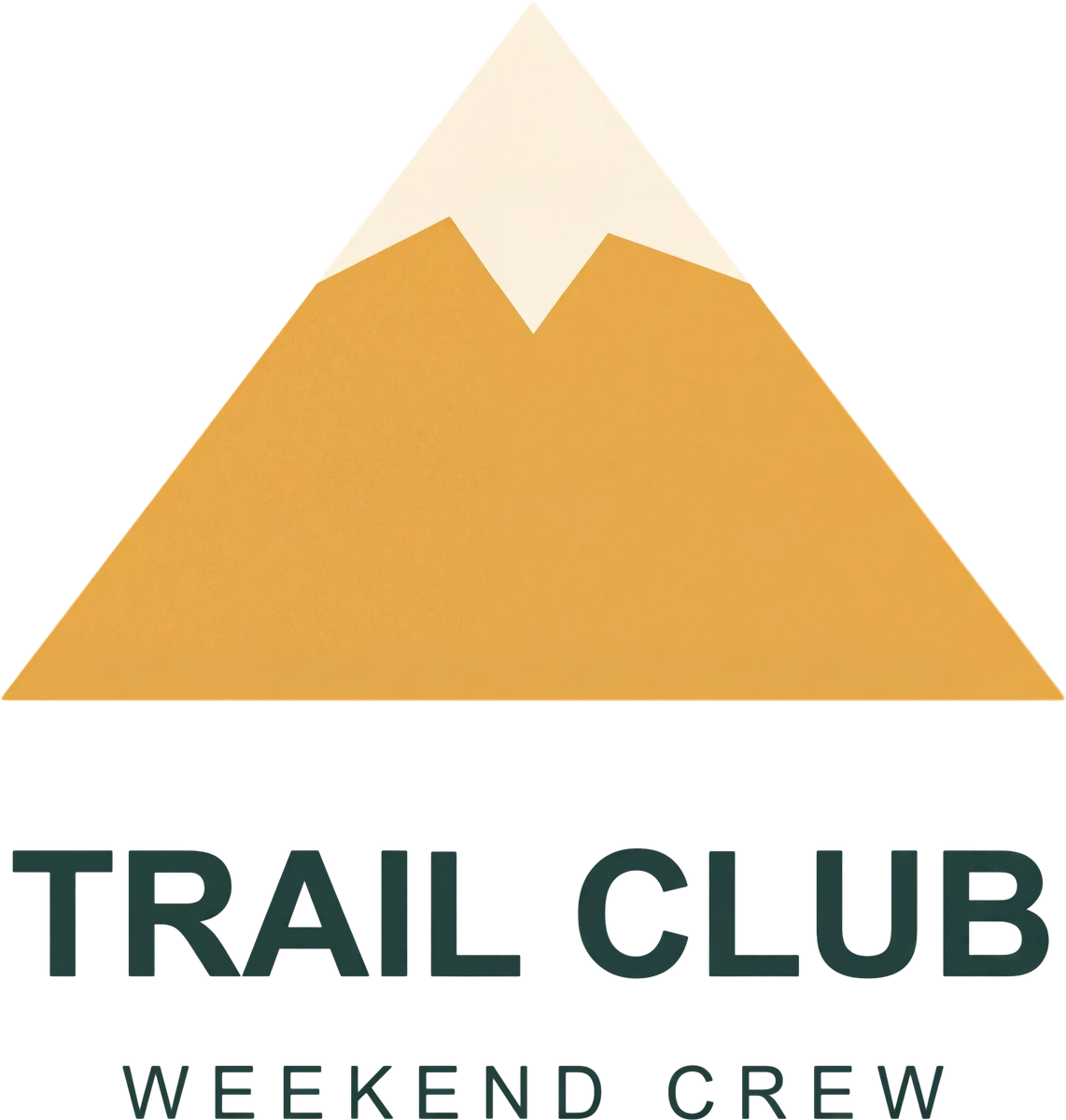
Selected Version 1
The words stayed. Some details changed.
The delivered candidate was 2180 × 2291 pixels after cleanup and trimming. It retained both text lines, while adding texture and changing the mountain geometry. This is the version we selected.
Judge the changes you can see. A larger image is not proof that every detail is right.
Start with what the file needs
Choose the path
that fits your file.
A good original can stay as it is. A size problem and an artwork change need different decisions. Use the path that matches the job.
Print as uploaded
Your file already looks right.
Keep the artwork you supplied. Check the words, background, edges and physical size before using it.
Review your original.
Upscale
Keep the artwork; work on size and sharpness.
Upscale uses the exact original and keeps its background. It does not correct spelling or request a different design.
Check the result at print size.
Fix with AI
You want to request an artwork change.
Describe the correction and what must stay. Read the quote, compare the result and revise before accepting a version.
You decide what moves forward.
Same-Day File Fix
You want the AMS art team to handle it.
Use staff artwork help at the displayed fee and timing. Artwork preparation time is separate from transfer production and pickup.
Ask a person to work on the file.
A useful place to begin
Make the change clear.
Write down what should change, what must stay, and the size you plan to print. Build a request you can copy into the artwork workflow.
Make the request specific
Write your artwork repair brief
Describe the change and what must stay. You’ll get a short AI note and an inspection plan before opening the builder. This tool writes text; it does not inspect an image, run AI, quote a price or approve artwork.
No upload or contact details. Entries stay on this page and reset when you leave. Keep your original file separately.
2. Read the note before you copy
74/1,000 characters. The builder’s initial note and revision fields each allow 1,000. Dimensions and checklist stay in the full plan below.
3. Know what to inspect
- Read every word, number and small label.
- Inspect the background, holes inside letters and edges around the design.
- Compare the details to preserve: [record what must stay].
- Inspect edges and fine detail at ? × ? inches.
- Select the intended candidate and read the preparation quote before choosing Looks good, make print ready. That action accepts the candidate and starts preparation; inspect the prepared result before Add prepared design to sheet. Confirm Use this prepared file only if the conditional transparency-review step appears.
Complete these brief details
- Describe the specific change you want.
- Record the important wording, colors or details that must stay.
- Enter both intended dimensions between 0.1 and 120 inches. This is the worksheet range, not an AMS print-size approval.
- Confirm you own the artwork or have permission to use and change it.
Full plan and selectable copy fallback
Open Upload, select your file and choose Fix with AI when you want to try the requested change. If you choose AI, paste the note yourself and review the shown credit quote. Nothing from this worksheet is sent automatically.
Open Upload in the builderBefore it reaches the sheet
A version you like.
A file you've checked.
A generated candidate is artwork to inspect. Acceptance selects a version. Preparation makes that selected version available for the print workflow. Each decision has a different job.
Be specific about what must stay.
Illustrative request: “Remove the white box. Keep the three-line layout and use the exact words FIELD DAY 2026.” Check that the returned artwork actually follows the request.
- Words
- Read the actual result against your approved spelling, names, numbers and dates.
- Background
- Check light and dark backgrounds for a box, halo, missing detail or unwanted pixels.
- Edges
- Inspect the fine lines and small details you expect to see on the garment.
- Print size
- Inspect the prepared version at the physical dimensions you intend to order.
Built around the print job
7+
years of founder printing experience
The point is what happens
after the artwork.
I've been printing for clients for more than seven years. That shop-floor perspective shapes this workflow: the requested change, the version you choose, its physical size and the order it belongs to all matter before a file reaches the printer.
Work through changes yourself, or choose the art team when you want a person to handle the file. Both paths lead back to a print order you've checked.
Alex / AMS founder
One job, then the next
Keep the version.
Build the next order.
This order
Inspect the prepared version, confirm dimensions and copies, add it to your sheet, and review the complete order before checkout.
Your next order
Open the saved prepared design in My Designs and choose Create Gang Sheet. Confirm the new sizes and quantities before ordering again.
A new artwork change
Return to the unprepared source. Pixel-changing edits need their own review and preparation; the protected ProFile preview is not an editable source file.
What is AI File Fix?
AI File Fix is the artwork repair path in the AMS gang sheet builder. Upload a design, choose Fix with AI, request changes and review the returned versions. You choose the version to accept and prepare before inspecting it for your print order.
Is it the same as Same-Day File Fix?
No. Fix with AI is a self-service workflow with quoted credit costs and customer review. Same-Day File Fix is artwork work by the AMS art team, with its own displayed fee and artwork timing. Production and pickup follow their own order requirements.
What will it cost?
Sign in and read the current quote in the builder. Generation, revisions and preparation have separate quotes; physical transfers are priced separately. A free preparation quote does not make generation, revisions or printing free. Buying credits is a one-time purchase, not a software subscription.
Can AI change a word or detail I wanted to keep?
Yes. Instructions to preserve wording, layout or colors are requests, not guarantees. Compare the result with your source and approved text. Ask for changes or choose another version before accepting artwork you intend to print.
Does accepting a version place an order?
No. In the bulk editor, Looks good, make print ready selects that candidate and starts preparation at the displayed preparation price. Other views may say Yes, it looks good. Inspect the prepared output and its print size, explicitly add it to the sheet, then check the sheet and order before checkout.
Can I use the prepared artwork for my next order?
Use the saved prepared version in My Designs and choose Create Gang Sheet. Keep that exact version selected and review the new order dimensions and quantities. A screenshot or ordinary re-upload does not preserve its prepared identity. Pixel-changing edits require the unprepared source and a new review.
What if a repair is interrupted or a control is missing?
Return to the same account, batch and design. Check the existing action and saved result before starting it again. Controls can vary by availability. Use the recovery guide or ask AMS for help if the existing result cannot be reached; a missing control does not prove your work was deleted.
Start with one design
Bring the file you have.
Upload it in the builder, choose Fix with AI, and check the quote. You decide which version belongs in your print order.