AMS TransfersSince 2020 - Houston, TexasAMS Manufacturing & PrintingFinished apparel catalog
Call (346) 204-4146HelpStart an order
HomeShare from My Designs

Share from My Designs
Let another person use an eligible artwork version in AMS orders. They review it and add it to their account.

Adding does not transfer ownership or allow artwork editing, production-file downloads, re-sharing or public listing.

Learn how sharing worksChoose your sharing path

Choose the audience first

Specific people
Only the invited verified email account can preview and add.
Anyone with the link
Active links allow public preview. Eligible recipients sign in to add.

Stopping new adds leaves accepted versions with their recipients.

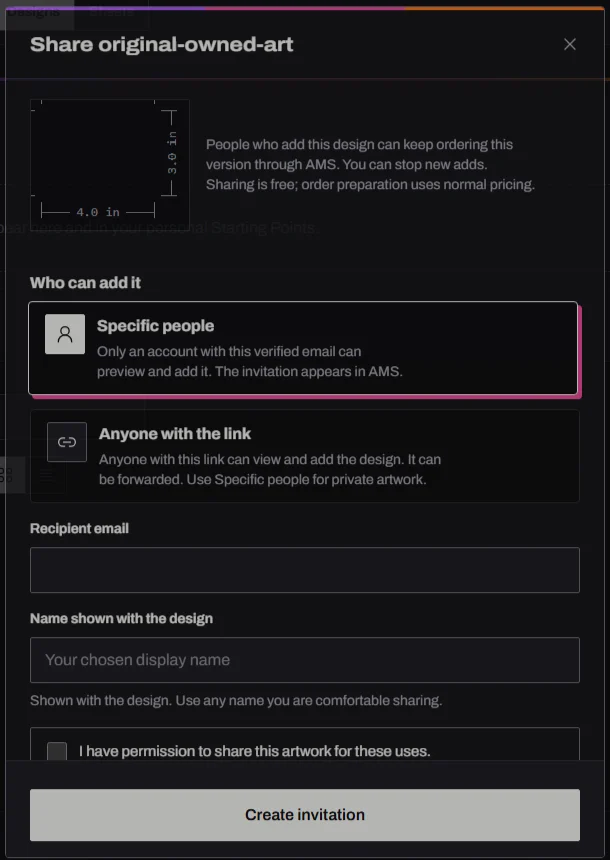
Actual Share controls showing audience choices and the chosen sharing-name field before offer creation.
Local owner audience controls before creation; opening creates no offer.
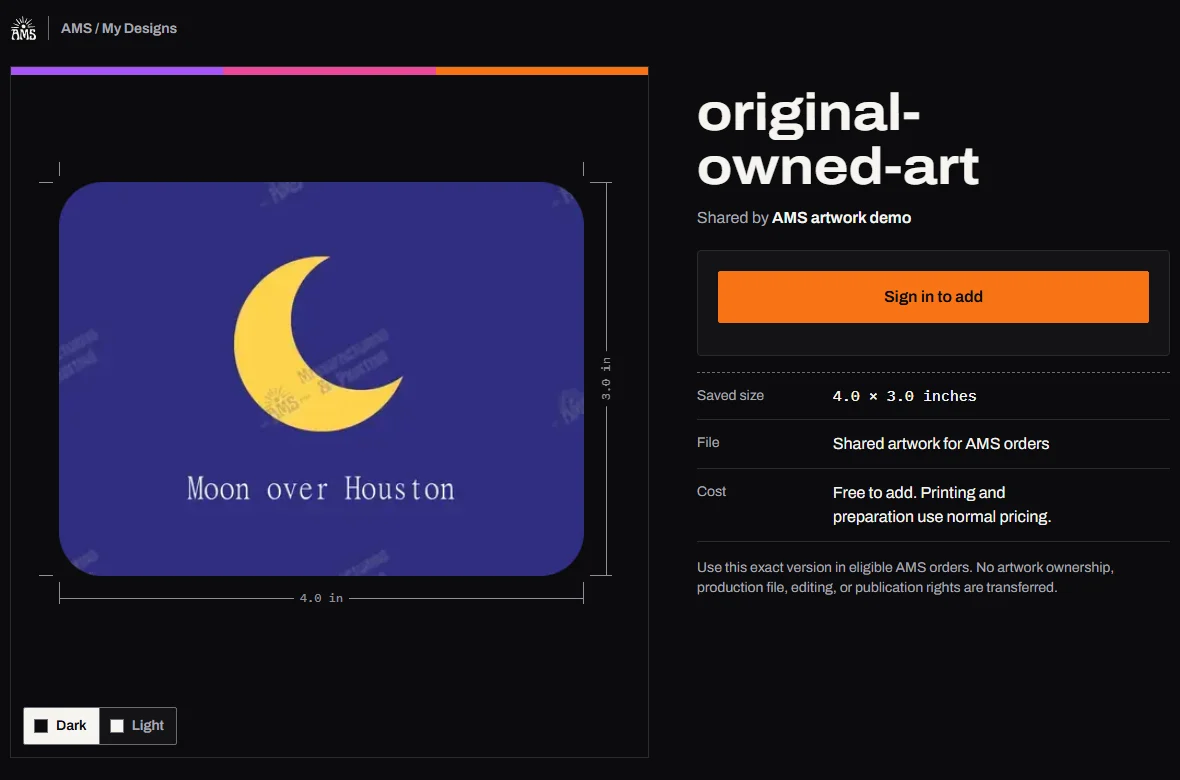
Actual anonymous unlisted preview with Sign in to add and the artwork use terms.
An active unlisted offer permits anonymous preview; Add requires sign-in.

Before you share a design

Share is for someone ordering the same artwork version through AMS. Check permission, the saved source and the audience before creating an offer.

1. Check permission and intended use

Before continuing, confirm all three:

  • You own the artwork or have permission to let another person use it in eligible AMS orders.
  • The recipient needs this exact version, rather than artwork they can edit, export or pass on.
  • You understand that stopping new adds leaves previously accepted versions with their recipients.

Having a saved copy does not establish sharing permission. Keep the artwork private while you check uncertain rights. A Share control cannot make that decision for you.

Need a different name, graphic or wording? Arrange an authorized changed version with the owner first. Adding does not grant artwork editing, production-file downloads, re-sharing or publication rights.

2. Check which saved artwork qualifies

My Designs checks the saved source and ownership before showing Share. Being in your library is the starting point.

Saved sourceSharing guidance
Your eligible upload or generated designMay qualify without running Make Print Ready first.
Your eligible prepared ProFileMay qualify as its exact prepared version, under its existing restrictions.
Purchased, Design Library, order or File Fix artworkExcluded from this sharing action.
Artwork received from someone else or published to your account by staffReceiving it does not make it yours to distribute through Share.

If Share is missing, check the owning account and source. Resaving someone else’s artwork does not create permission. See the owner steps.

3. Choose who can preview and add

The important choice is whether another person who receives the link should be allowed to use it.

AudienceWho can preview and add?Check first
Specific peopleThe account with the exact invited verified email can review and explicitly add.Confirm the recipient’s account email. Forwarding does not grant another account access.
Anyone with the linkThe active unlisted link has a public preview. Another eligible signed-in account can explicitly add.Use only when forwarding and that wider audience are acceptable.

Use Specific people for private artwork. An unlisted link permits public preview and forwarding. Resolve sign-in issues without widening the audience.

Creating an invitation puts it in AMS. This feature sends no email or text. You pass the link to its intended recipient yourself.

4. Separate sharing from preparation

An eligible upload can be shared before Make Print Ready. It keeps its saved appearance and still needs a quality check at the size you intend to print.

CheckRaw shared artworkPrepared shared ProFile
Preparation before sharingNot required for an eligible raw source.Uses an eligible completed prepared version.
Recipient labelShared artwork.ProFile.
What to reviewArtwork quality at intended print size and any preparation the order requires.The accepted prepared version, printed as-is under its existing restrictions.
Before orderingReview size, placement, readiness and proof.Review size, placement, readiness and proof.

Sharing and adding are free. Normal charges apply to printing and any preparation the order requires.

A small screenshot still needs careful inspection at shirt size. Check lettering, edges and background at the intended print size. The artwork guide explains the checks.

5. Review, add, then use

For the owner

  1. Find the eligible saved version in My Designs and open Share. Opening the controls creates nothing.
  2. Choose the audience and the name shown beside the design. Confirm permission for the stated uses.
  3. Choose Create invitation or Create link and copy. Wait for confirmation before retrying.

For the recipient

  1. Review the design, shown size, sender name and usage permission. For Specific people, use the invited verified email.
  2. Choose Add to My Designs only when you want that version. Opening the preview or signing in does not add it.
  3. Find it under Shared with me or personal Starting Points, then choose Use in Studio.
  4. Check physical size, placement, quantity, readiness and the protected proof before a paid order. Normal Studio access requirements apply.

An owner change does not silently replace the version you accepted. Review a new offered version separately. Follow the recipient steps to find or use an accepted design.

6. Understand what stopping changes

Find the offer under Shared by me and choose Stop new adds. Check that the intended offer shows as stopped.

ActionEffect
Stop new addsCloses that offer to new additions. Other active offers are separate.
Return to an accepted versionUse the saved entry even after that offer stops or expires.
Remove the owner’s original from My DesignsDoes not recall the recipient’s accepted version.
Hide a received entryRemoves it from the visible collection; Restore brings it back.

Decide before sharing whether you are comfortable with accepted use continuing. AMS can still review artwork for safety or rights concerns and make it unavailable when needed.

The audience guide explains offer management.
7. Match the problem to the next step

What happened?What to do
Share is missingCheck the owning account, source eligibility and current sharing availability.
An offer is unavailable before you addFor Specific people, check the invited verified email. If either kind of offer stays unavailable, ask the owner about an intended new invitation. The message does not identify whether it is stopped, expired or restricted.
Add was interruptedCheck My Designs for the saved entry before retrying.
An accepted design is missingReturn to the accepting account. Check Hidden designs and choose Restore.
The old offer stopped after you addedReturn through your accepted collection rather than the old invitation.
The accepted entry itself is unavailableAsk AMS for review. A new offer cannot bypass rights or availability restrictions.
Link copying failedSelect the visible link and copy it manually. Keep it with its intended audience.

For permissions and recovery help, describe your role, the screen and the action. Keep private links and account details out of public posts.

Choose your sharing path

Check permission and audience before opening Share. This guide does not look up your account or create a share.

This is advice. My Designs still checks eligibility. Sharing does not prepare artwork; printing and required preparation use normal pricing.

Confirm permission before sharing

  1. Check that you may let another person use this artwork in eligible AMS orders.
  2. Keep the design private while permission is uncertain.

Owning a saved copy does not establish permission to share it.

People who add a version can keep using it after new adds stop, subject to AMS availability and rights review.

Prefer a checklist? Confirm permission, check the source and version, choose the audience and create explicitly. The recipient reviews, adds, then checks Studio placement and proof before ordering. Accepted use continues after new adds stop.

Open My Designs

Sign in to check your saved artwork or manage shared designs. Opening My Designs creates no share and adds no artwork.

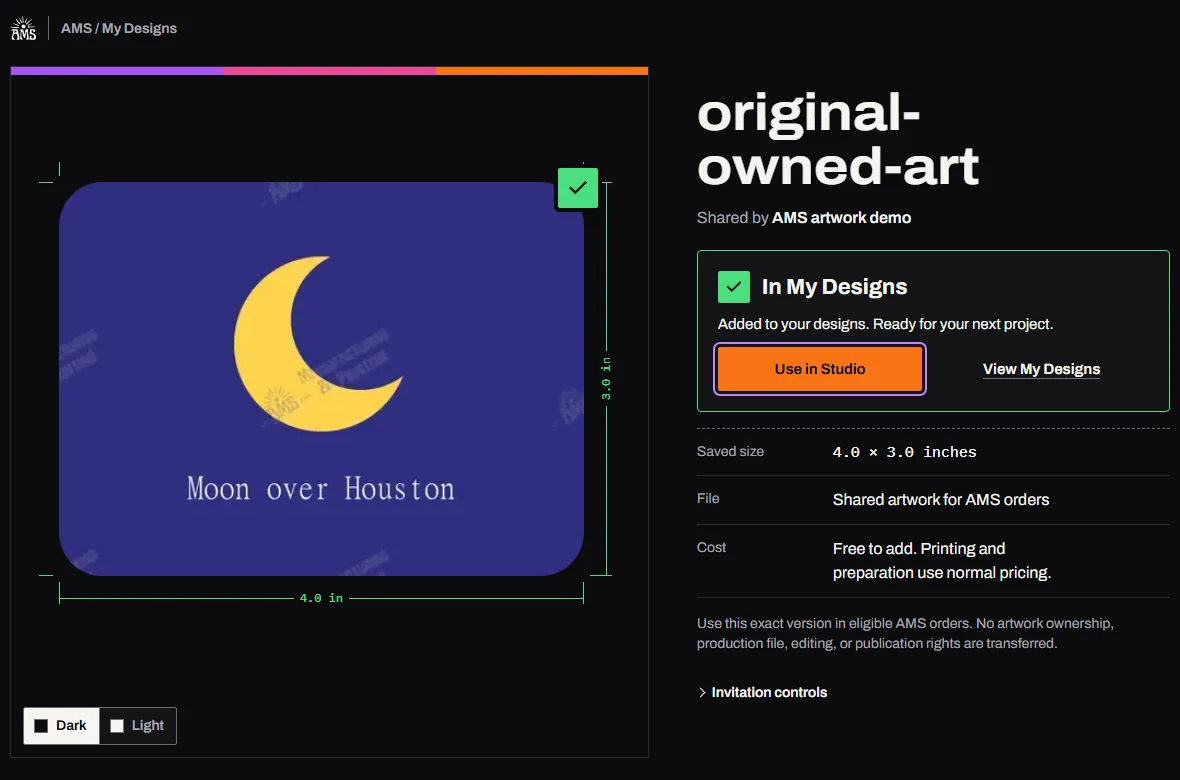
Accepted raw artwork with In My Designs confirmation and Use in Studio as the separate next step.
Explicit Add saved the raw version. Use in Studio is a separate next step, not demonstrated here.

Watch an owned upload through explicit Add

Open the demonstration video
Read the transcript
  1. 00:00:00 Local demo: an owned upload, reviewed at its intended print size.
  2. 00:00:07 In My Designs, opening Share creates no offer.
  3. 00:00:13 Specific people ties access to the invited verified email.
  4. 00:00:19 Anyone with the link permits public preview. Confirm rights before creating.
  5. 00:00:25 This example uses an unlisted link. The private copy screen is omitted.
  6. 00:00:31 Anonymous visitors can preview. They must sign in before Add.
  7. 00:00:37 Signing in still does not add the version. Review its size and terms.
  8. 00:00:43 Sharing and adding are free. Preparation and printing use normal pricing.
  9. 00:00:49 The recipient explicitly chooses Add to My Designs. This exact version is saved.
  10. 00:00:56 This local demo stops at Add. Studio placement, proof and ordering are not shown.

Questions about sharing

Can someone else add a forwarded link?

With Anyone with the link, another eligible signed-in account can add the offered version. The preview is public to people holding the active link. Specific people restricts access to the invited verified email account.

Does free sharing include preparation or printing?

Sharing and adding are free. Required preparation and printing use normal pricing. Raw artwork still needs normal checks; adding it does not turn it into a prepared ProFile.

Will AMS send the invitation for me?

The invitation is created in AMS. This feature sends no email or text message. Copying the link and sharing it yourself is separate from creating the offer.

Can the recipient download, edit or re-share the artwork?

Adding grants exact-version use in eligible AMS orders. It does not transfer ownership, artwork-editing, production-file download, re-sharing or publication rights. Ask the owner about an authorized changed version.

What happens if I stop the offer or remove my original?

Previously accepted versions remain with recipients for eligible use, subject to AMS availability and rights review. Stop new adds closes that offer to future additions. Removing your original does not recall accepted use.

Does renaming my entry change the artwork?

Renaming changes your collection label. It does not change the accepted artwork. An owner edit does not replace your accepted version automatically.

Can Studio’s assistant or phone support share it for me?

Signed-in Studio text chat supports eligible prepared artwork through a permission and sharing-name card, then an unlisted link copied in your browser.

Use My Designs for eligible raw artwork or Specific people controls.

Telephone support can explain sharing, but cannot create, accept, stop or send a share for you.

Find the task you need

  • Share your design
  • Receive and use a version
  • Manage audiences
  • Fix an access problem

Credit, debit & digital wallets

Visa
Mastercard
American Express
Discover
Apple Pay
Google Pay

Buy now, pay later

Affirm
Afterpay
Klarna
Zip

Transfer types

  • Custom Transfers Houston
  • DTF Transfers Houston
  • Plastisol Transfers
  • UV Peel & Stick

Compare

  • DTF vs Plastisol
  • DTF vs UV

Resources

  • Blog
  • AI Design Studio
  • Print ChatGPT Designs
  • Print Gemini Designs
  • Transfer Pricing
  • Turnaround Times
  • File Requirements

How-to guides

  • Apply DTF
  • Apply Plastisol
  • Apply UV DTF
  • Fix AI Art for Print

Houston

  • Same-Day DTF
  • Wholesale DTF
  • Company Shirts
  • Event Shirts
  • Finished Apparel

Get started

  • Start an Order
  • Campaign Stores
  • Gang Sheet Builder
  • AI Design Studio Houston
  • Get Help
  • Request Samples
  • EasyTransfer Tape

Latest blog guides

Shop-floor answers for Houston apparel, DTF transfers, blanks, artwork, and order planning.

View all blog posts
  • Best Custom Polos for Houston Teams: 2026 Polo NavigatorCompare 2026 custom polos for Houston teams by outdoor work, snag risk, size coverage, brand requirements, sourcing, and decoration.
  • Black DTF Powder vs White DTF Powder on Polyester ShirtsBlack DTF powder can be worth testing on dark polyester and camo shirts, but it is not a guaranteed dye-migration fix. Use this AMS shop-test guide before you promise the job.
  • Are All DTF Transfers the Same? A Houston Buyer's Guide to Cheap vs Quality DTF TransfersCompare cheap DTF transfers with quality, pickup, pass-count, peel, support, and deadline risk before choosing by price alone.
AMS Transfers

AMS Manufacturing & Printing LLC

6721 Alder Dr. STE C

Houston, Texas 77081

Bellaire Blvd / Chimney Rock Rd

Get in touch

We're here to help. Reach out by text or phone.

Text us: (844) 437-0873

Call us: (346) 204-4146

© 2026 AMS Manufacturing & Printing LLC.
All rights reserved.