Gang sheet field guide
How to Use Free Designs in a DTF Gang Sheet
Start with library artwork, then decide the physical print size, copies, and placement. The real sheet and final proof tell you what you are ordering.
Plan your sheetThe library and its categories change as designs are published. Use the builder for the current selection.
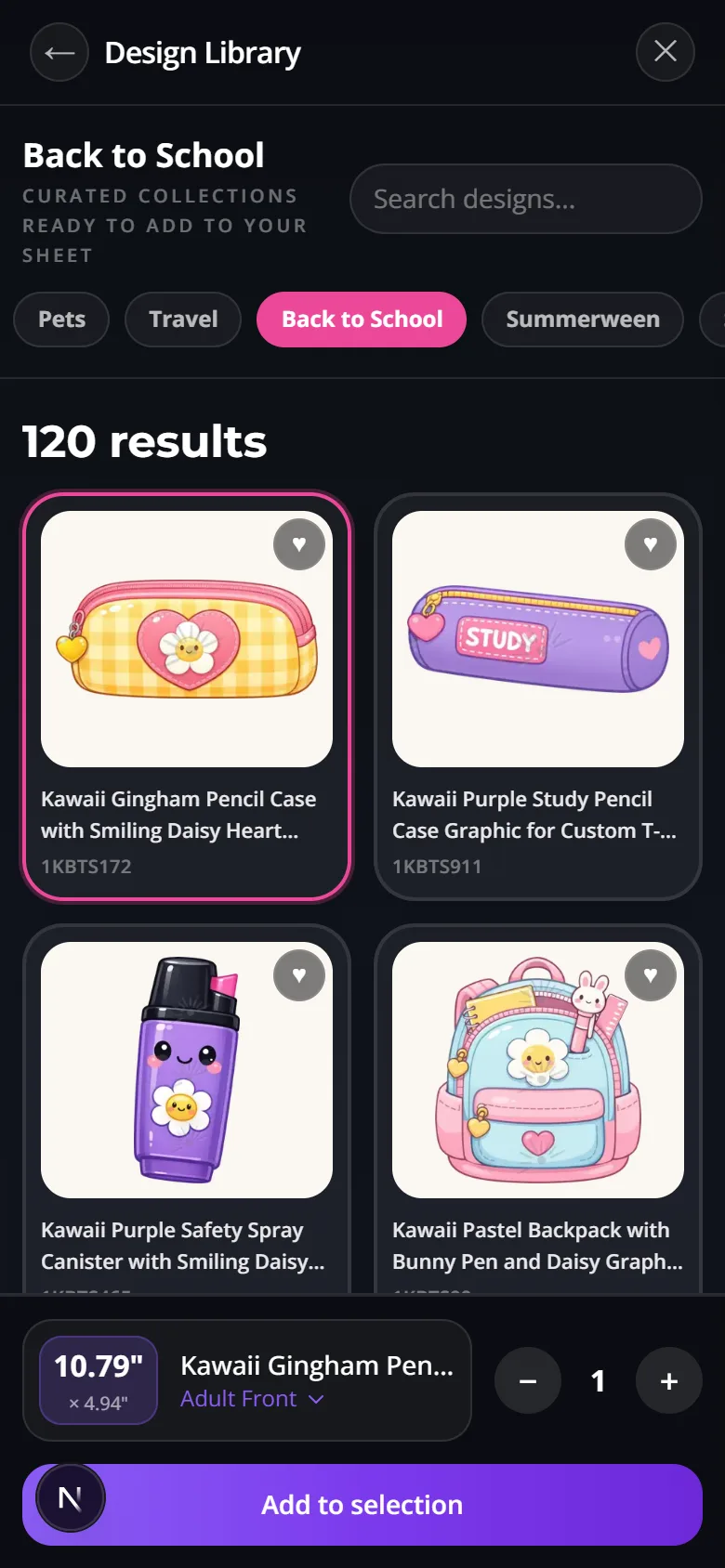
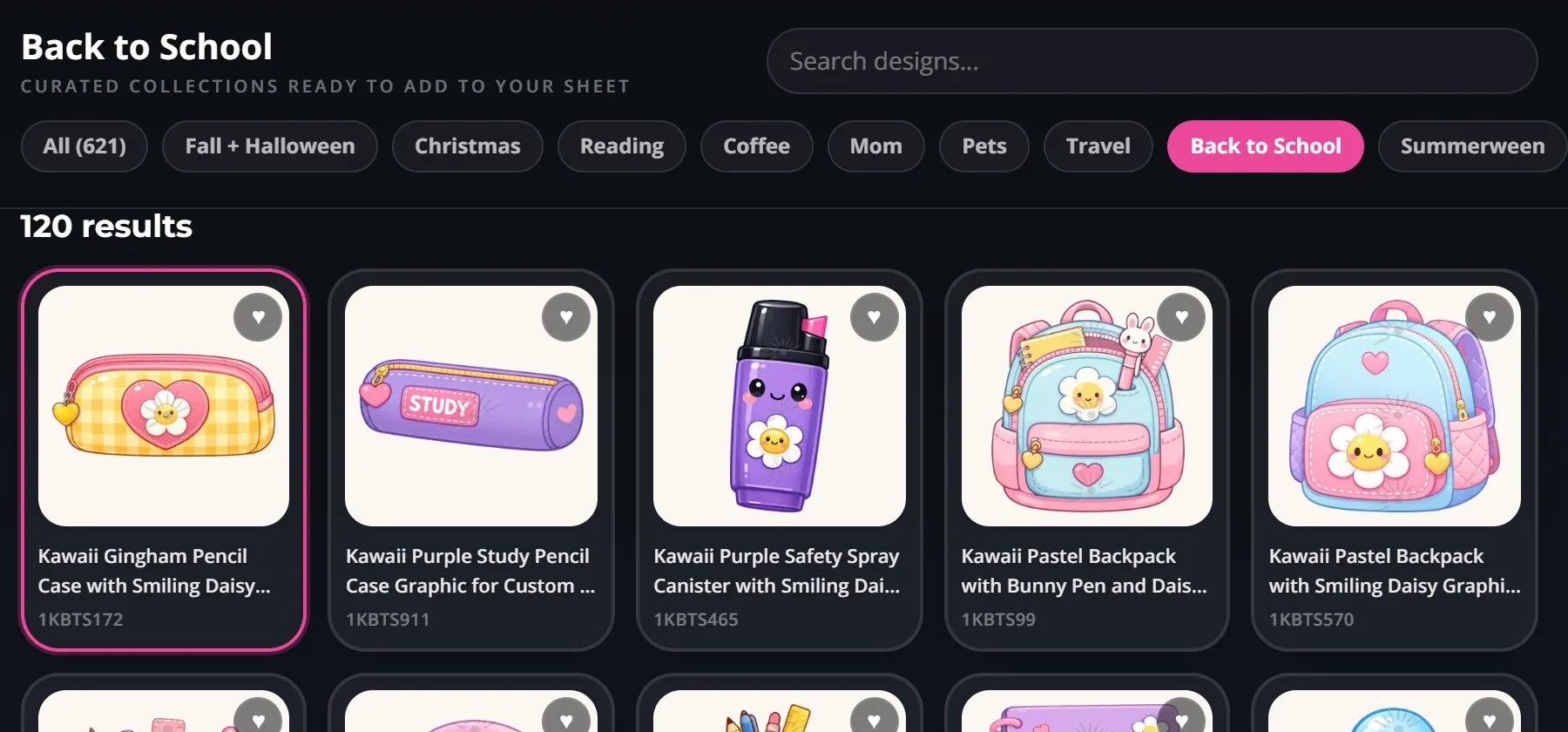
- 01
Browse
Open the Design Library in the builder and browse the categories that are available now.
- 02
Choose
Select artwork that fits the actual shirt, event, team, or gift you are making.
- 03
Size + copies
Choose a printed size in inches and how many transfers of that size you need.
- 04
Place + review
Add it to the sheet, check the arrangement, and complete the final proof and order review.
One design, from selection to sheet
The images below follow the same artwork in a local builder session. Choose a current design in your own session; names, options, and prices may differ when you order.
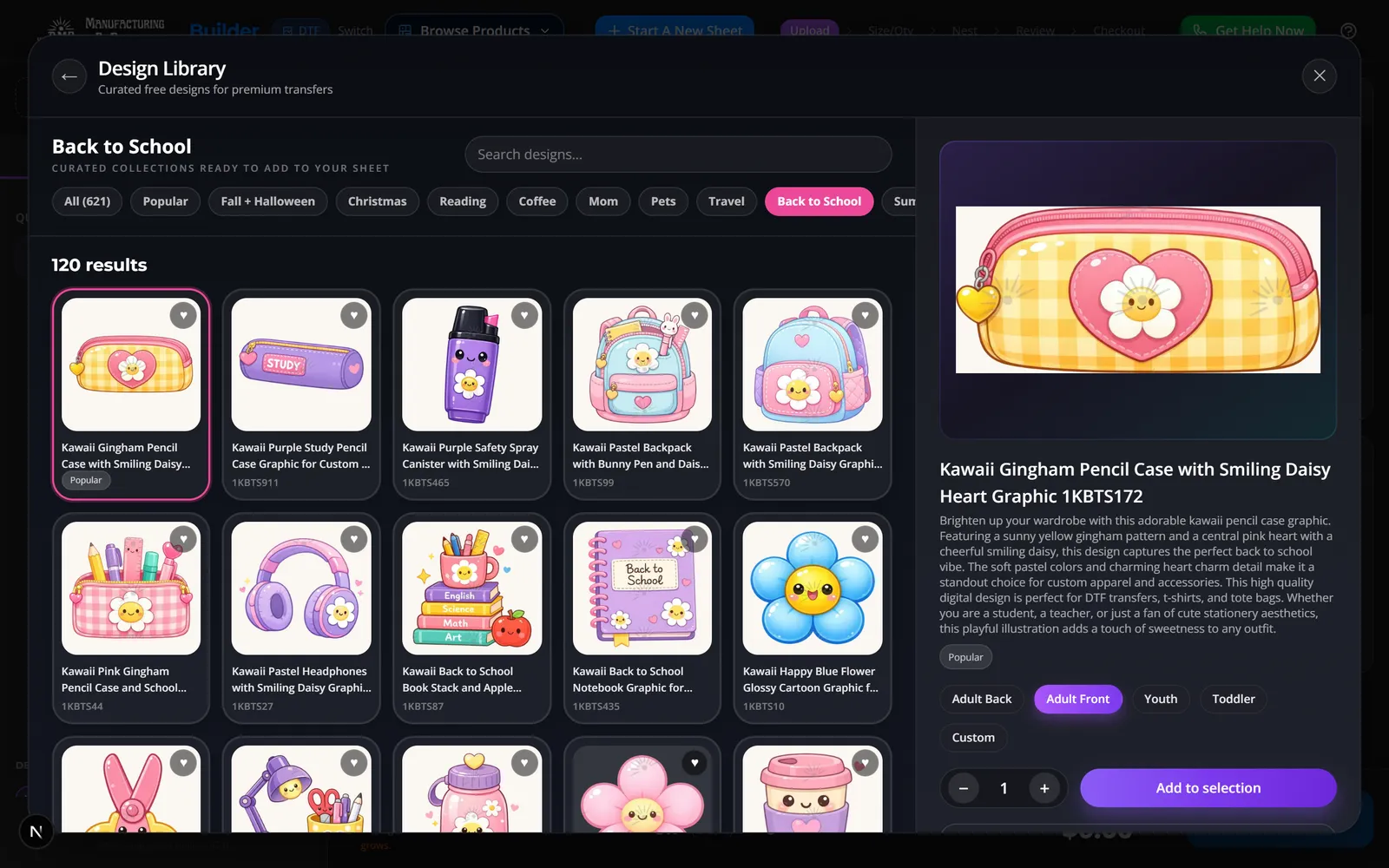
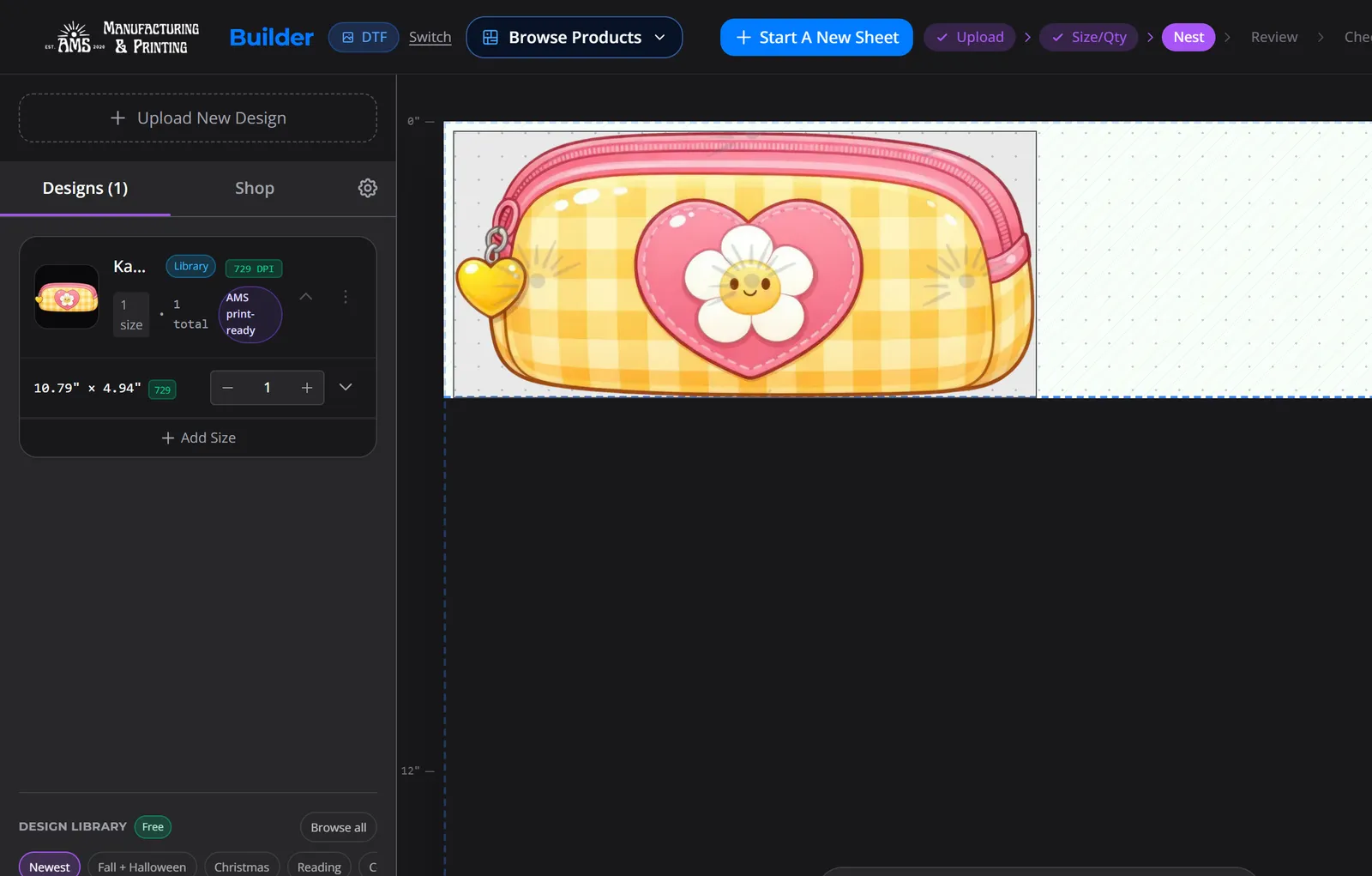
After adding a design, review Artwork Options and choose Done. The sheet view is where you check placement. The cart is an order summary; complete the final proof and order review in the checkout flow before approval.
Interactive worksheet
Make a plan before you open the builder
A good plan names the artwork route, garment location, printed width, copies, and any second design. This planner does not calculate sheet fit, price, print quality, or a delivery date.
Free Design Sheet Plan
Plan a design for my sheet
Turn an art idea into a short sheet plan. The builder confirms current design availability, size options, sheet fit, price, and proof. No contact details needed.
Your plan
0/100
Build your plan
Plan readiness counts decisions entered. Even 100 does not confirm artwork rights or quality, sheet fit, price, or delivery.
Open the gang sheet builderFind artwork
Choose a design you can use
On desktop, the Design Library preview sits beside the sheet. On a phone, open Browse Free Design Library from the upload area. The full view has current categories, search, and artwork cards. Check that the subject matches your order and that the design is selectable now.
When search shows nothing
- Clear a restrictive category or filter.
- Try a shorter subject or related word.
- Browse the current categories and Fresh designs.
- Use your own artwork or Create or Fix if the idea is still missing.
Physical size
Choose print size from the garment, not the thumbnail
A thumbnail cannot tell you the physical print size. Put a ruler or paper outline on the actual garment location, then choose an available size in inches. A shirt size and a printed artwork width are different measurements.
| Write down | Your plan |
|---|---|
| Garment and location | Front, back, pocket, youth, or other |
| Measured visible area | _____ inches wide × _____ inches tall |
| Planned printed artwork width | _____ inches; confirm in builder |
| Builder size selected | Preset or accepted custom size |
Some selected designs offer preset sizes or personalization. Use the choices actually shown for that design; keep art in proportion when custom size is available.
In Alex’s print-size walkthrough, the garment location drives the size decision. Use that idea with the actual garment in front of you; the builder choices may have changed since the video.
Count copies after the size makes sense
Record how many prints you will actually use. A second size or design can be useful, but every additional piece takes room. The builder decides whether the arrangement fits.
- Design A: placement _____ · width _____ in · copies _____
- Second size: placement _____ · width _____ in · copies _____
- Design B or own art: placement _____ · width _____ in · copies _____
If the sheet says no room
- Recheck the size; reduce it only if the smaller print still works.
- Remove copies you do not need.
- Change or remove a second piece.
- Use the current sheet/layout controls or start another sheet.
Run the live total and inspect the new arrangement after each change. A simple area calculation is not a fit guarantee.
What “free design” covers
The artwork choice, the sheet builder, and the physical transfer order are separate parts of the job. Check the terms for the selected art and the live order total before paying.
| Part | What to verify |
|---|---|
| Library artwork | The current label and art-use terms. Do not assume ownership, a source-file download, or reuse rights. |
| Builder | Current access and the sizes/options offered for your design. |
| Printed sheet | The live price for your actual configuration. A free artwork label does not make the physical order free. |
| Other charges | Any selected service, shipping, pickup, and tax shown for your basket. |
Before approval
Review the sheet and final proof
Auto-Build can arrange the art, but you still need to inspect it. Review the sheet before the cart, then complete the proof and order review in checkout.
- The artwork is the version you intended.
- Every planned size and copy is present.
- Nothing is clipped, overlapping, or partly off the sheet.
- There are no unwanted duplicates or missing second designs.
- The sheet length, live total, and fulfillment option match this order.
For a visual explanation of the final inspection, see Mic’s proof walkthrough. The controls in your current order remain the source of truth.
Other art routes
If the library is not the right fit
Upload artwork you can use if you already have it. Use a URL only if the builder accepts your image source. Open Create or Fix to see the AI artwork tools currently available to you. A screenshot or small web image may need artwork review; inspect warnings and the final proof.
If the date matters in Houston
Choose the art and approve the proof before relying on a pickup or delivery option. Check the dated option and total shown for your exact basket. If your event date cannot be confirmed there, ask AMS for help before promising the transfers to anyone.
Ready to check your plan on a real sheet?
Open the builder, choose a current design, and verify the print size, quantity, fit, total, and final proof there.
Need the exact controls? Read the Design Library help guide.
A few practical questions
Will the same designs always be there?
No. The builder uses the current published library, so categories and art can change. Recheck the design when you make the sheet.
Does free art mean a free printed sheet?
No. Read the live total for the printed transfers, selected services, and fulfillment before checkout.
Can I combine library art and my upload?
Yes. Add each piece to the sheet, check its physical size and copies, then inspect the complete layout.
What if I only have a screenshot?
Use the available artwork help path and review any quality warnings. A screenshot is an idea or source image, not an automatic print-quality guarantee.